Printer farm
Every Klipper printer on your network on one page, with the ones that need you first: a print to take off, a part that stayed on the bed, an error, a paused queue. You install it on one printer only. It searches the network, finds the other printers and adds them; the other printers need nothing installed.
| A card shows | |
|---|---|
| Needs you | A finished print to take off, a part that stayed on the bed, parts too thin to push, an error, a cancelled print, or a job queue that waits for you. It says which. |
| Printing | The file with its picture, how far it is, the time left and the layer |
| Clearing the bed | auto-eject is cooling the bed and pushing the parts off |
| Paused, Stopped | A paused print; Klipper stopped, with its message |
| Free | Ready for the next print, and how many jobs wait in its queue |
| Offline | Not answering |
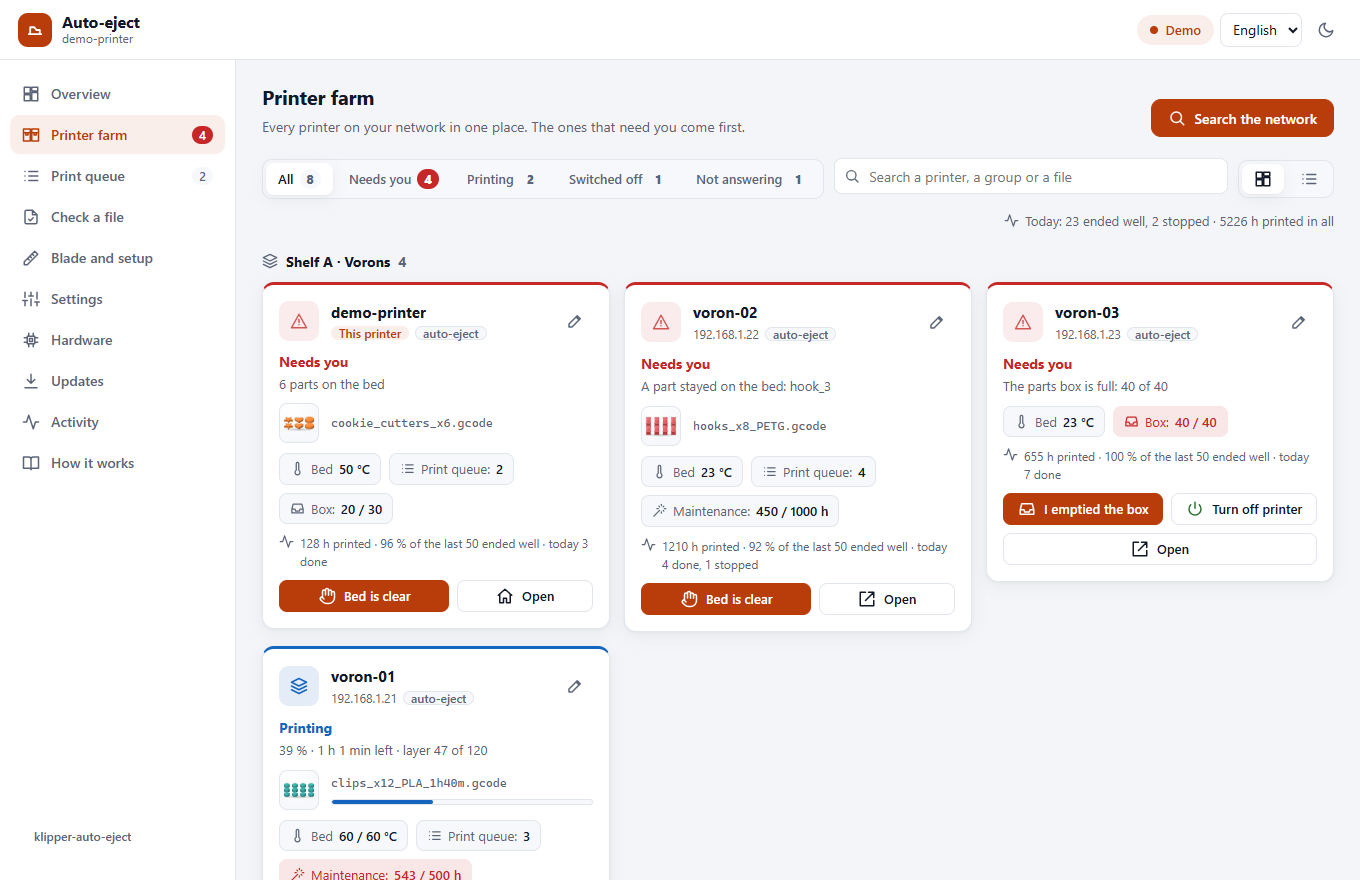
Each card also shows the bed temperature and, if the printer has a camera in Moonraker, its picture. At the top: how many need you, print, are free or offline. The Printer farm tab in the menu shows the number that need you too.
From each printer's print history in Moonraker, a card also shows the hours it has printed, how many of its last 50 prints ended well, and today's count. The top line adds up the whole farm: Today: 16 ended well, 2 stopped · 4571 h printed in all. A print stopped means it ended with an error or was cancelled.
Printers with klipper-auto-eject show their parts, the eject and its problems; any other Klipper printer shows its print. A finished print on a printer without auto-eject counts as Needs you until you press Bed is clear.
Set it up (5 minutes)
- Pick one printer for the page: any Klipper printer with Moonraker and Mainsail or Fluidd, preferably one that stays on. It does not need a blade.
- On that printer, over SSH:
This installs the web page and the
cd ~ && if [ -d klipper-auto-eject ]; then git -C klipper-auto-eject pull --ff-only; else git clone https://github.com/ahmedbebars/klipper-auto-eject.git; fi && ./klipper-auto-eject/install.sh --farmklipper-auto-ejectservice, which runs the farm. It asks for your password once. If this printer has no blade, add--no-include: the farm does not need the auto-eject macros. - Open
http://<that printer>/auto-eject/, tab Printer farm, and press Search the network. After about 10 seconds it lists the printers it found. Untick any you do not want and press Add.
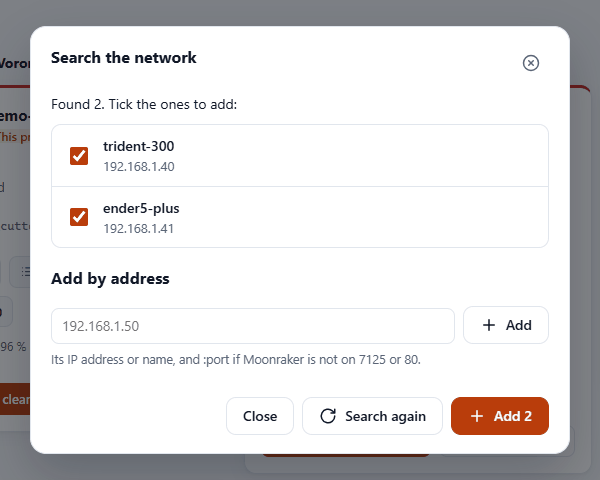
The list is kept on that printer. Press Search the network again whenever you add a printer. The printers you left out are remembered: the next search lists them last, unticked, as "left out last time", so you can still add one later.
A printer that is not found
The search asks every address of the printer's own network (the 254 addresses around its own,
such as 192.168.1.1 to 192.168.1.254) and every Linux device on your Tailscale network. On each
one it looks for Moonraker on port 7125 and port 80. A printer it finds both ways is listed once,
with its local address: it knows it is the same machine by its network card.
- On another network or VLAN: type its address under Add by address, such as
10.0.5.20. - Several Klipper instances on one computer: add each one by address with its Moonraker port,
such as
192.168.1.50:7126. - Found but Offline: its Moonraker does not let the farm printer in. Most installs (KIAUH,
MainsailOS) let in every address of the local network; if yours does not, add the farm printer's
address to
trusted_clientsin that printer'smoonraker.conf. A Moonraker that asks for a login or an API key cannot be read.
The buttons
| Button | What it does | Asks first |
|---|---|---|
| Bed is clear | You took the print off. With auto-eject: forgets the stored parts (AUTO_EJECT_CLEAR). Without: forgets the finished job (SDCARD_RESET_FILE) so the printer shows as free. Nothing moves. |
No |
| A free printer: pick one of its G-code files (each with its picture, print time and filament), or send it one from your phone or computer (Send it, or Send it and print). Refused while it prints or while auto-eject knows parts are on its bed | Yes | |
| Pause, Resume, Cancel the print | The print running on that printer | Cancel asks |
| Start the queue | Starts that printer's Moonraker job queue: the next job prints | Yes |
| Emergency stop | Stops that printer at once. It then needs a firmware restart | Yes |
| Open | That printer's own page: its auto-eject page if it has one, otherwise Mainsail or Fluidd. Away from its network it opens through Tailscale if that printer has Tailscale; otherwise it shows Open (on its network) and does nothing | |
| I emptied the box | The printer's parts box is full: you emptied it, it counts from zero again (AUTO_EJECT_BIN_EMPTY) |
No |
| Turn on / Turn off | For printers with a power switch in Moonraker ([power] in moonraker.conf, a smart plug, a relay). Off never happens while it prints or while the nozzle is above 50 °C, because the hotend fan stops with it |
Off asks |
| ✎ | Rename the printer here, or remove it from the farm. Nothing changes on the printer itself. With a power switch: Turn off by itself when it has nothing to do |
Switching printers off by themselves
For a printer with a power switch, ✎ offers Turn off by itself when it has nothing to do: never, or after 15 minutes to 4 hours. Nothing to do means not printing, nothing in its queue and the nozzle below 50 °C. The farm then switches it off and sends a notification. Use it only for a switch that powers the printer, not the computer that runs Moonraker, or nothing can switch it on again. A printer switched off shows Switched off, with Turn on.
A printer with auto-eject also shows its parts box (Box: 32 / 40) once
bin_capacity is set; a full box makes it Needs you.
Maintenance reminders and the daily report
- Maintenance reminder: in a printer's ✎, choose Every 100 to 1000 hours of printing. The card shows Maintenance: 450 / 1000 h (red once due) and the phones get one notification when it comes due. After the maintenance, press Maintenance done in ✎: it counts from zero again. The hours come from that printer's print history in Moonraker.
- Daily report: at the foot of the farm, Daily report to the phones: every day at the time you choose, a notification sums up the farm: Today 23 ended well, 2 stopped. Now 2 printing, 4 need you (…). 5226 h printed in all. Maintenance due: voron-01. Tapping it opens the farm. It goes to the phones that turned notifications on in the app (notifications.md).
Both are off until you choose them.
A big farm
The same page works for one printer and for a hundred.
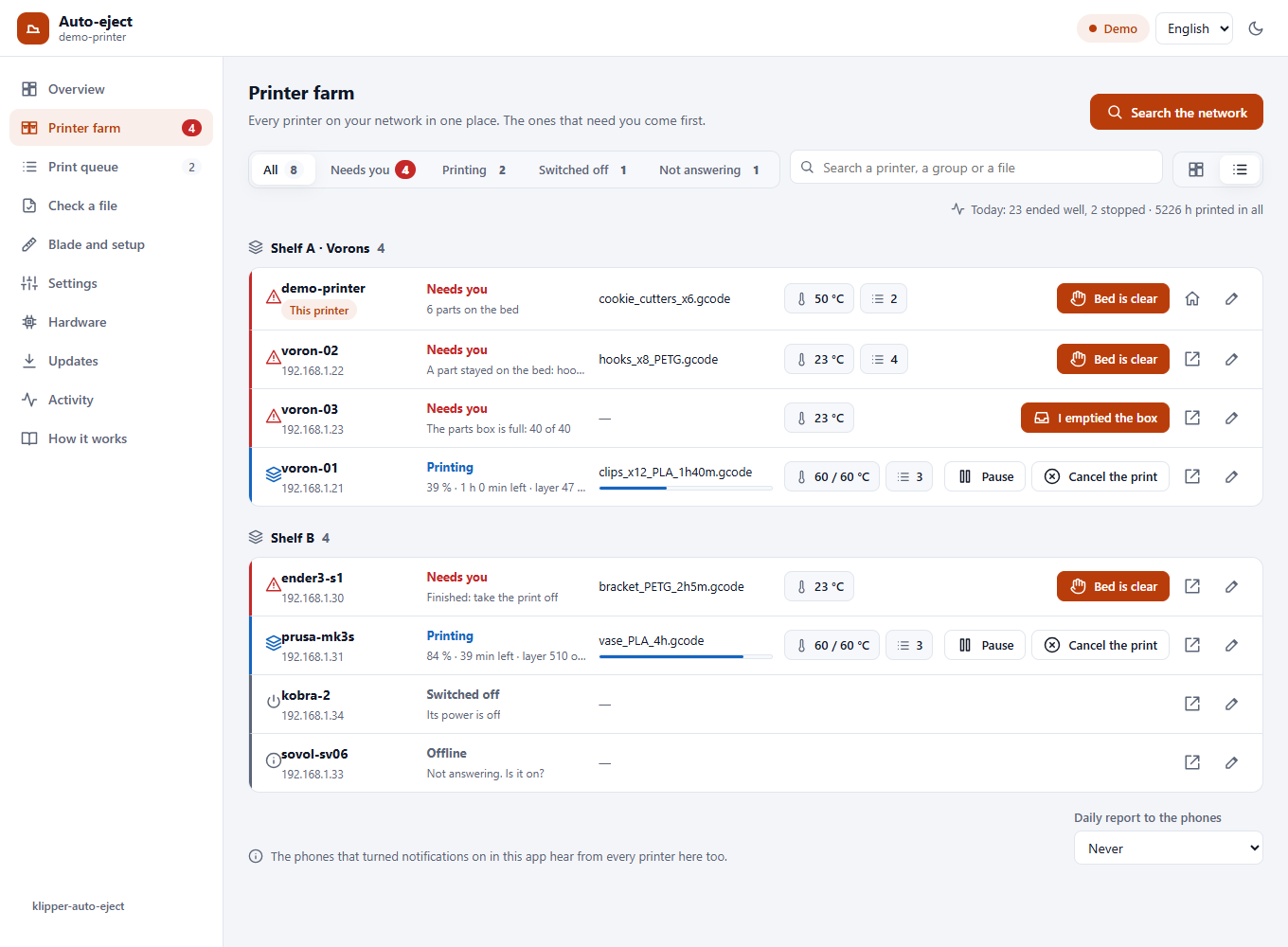
- Filters at the top: All, Needs you, Printing, Free, Switched off, Not answering, each with its count. A paused print counts as Needs you.
- Search: a printer's name, its address, its group or the file it prints.
- Cards or a list: with more than 12 printers the page shows one line for each printer, with its state, its file and progress, the bed and its buttons. The two buttons next to the search switch between cards and the list; this browser remembers your choice.
- Groups: in a printer's ✎, give it a group, such as
Shelf AorRoom 2. The page shows each group under its own title, groups by name and printers without a group last. A group is kept on the farm printer only; nothing changes on the printer itself.
Updating the whole farm
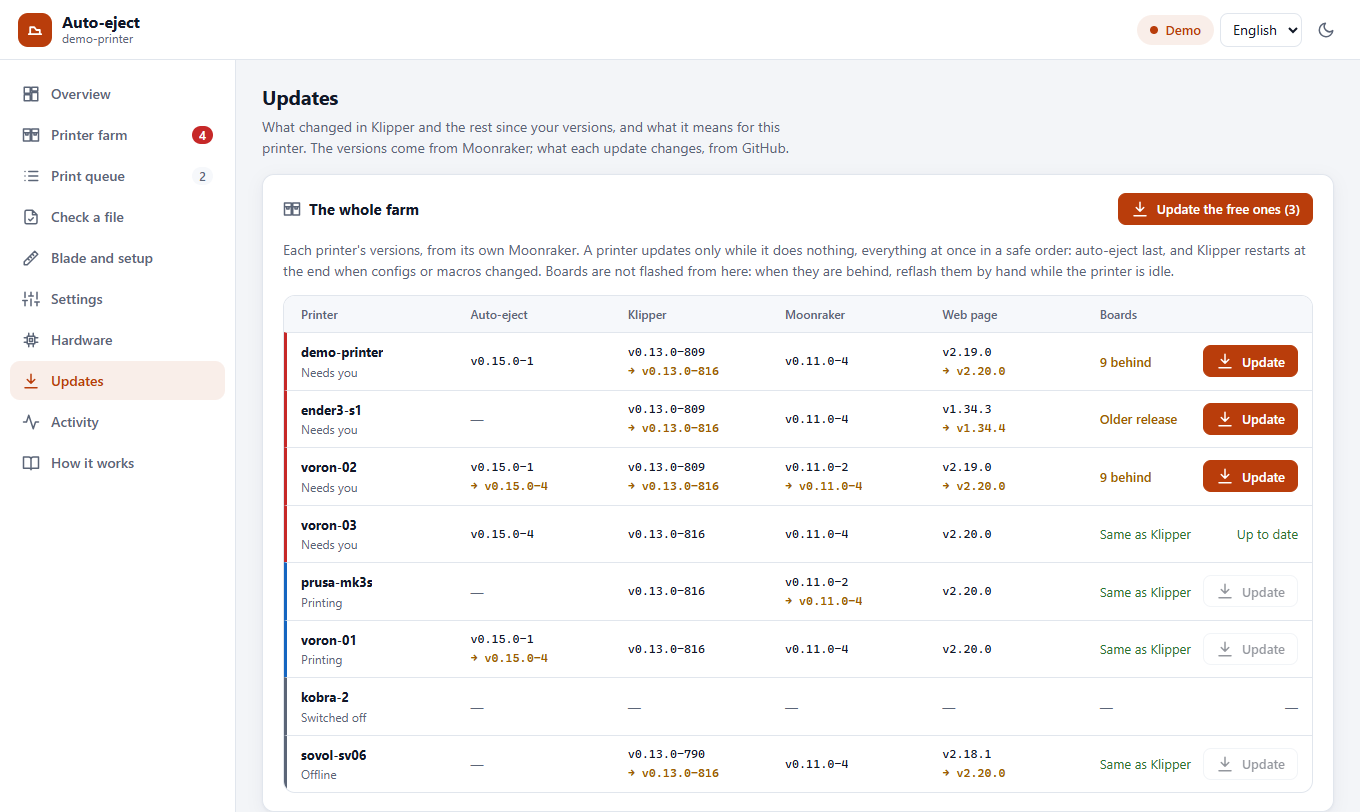
The Updates tab shows a The whole farm card when the farm has more than one printer: each printer's version of auto-eject, Klipper, Moonraker and its web page (Mainsail or Fluidd), the latest of each, and how far its boards' firmware is behind its Klipper. Press Update on one printer, or Update the free ones for every printer that has something new and is doing nothing.
- Only while it does nothing. A printer that prints, is paused, clears its bed, is stopped, switched off or not answering is not updated. The farm asks again right before each software, so one that starts a print on the way stops updating there. Moonraker refuses too while it prints.
- Everything at once, in a safe order: the others first (the web page, crowsnest, a macro set), then Klipper, then Moonraker (the farm waits for it to come back), auto-eject last.
- Klipper restarts once at the end when something with configs or macros was updated (auto-eject, a macro set), and only if the printer is still doing nothing. Klipper and Moonraker restart by themselves when they are updated.
- The farm printer itself: updating its own auto-eject restarts the farm on the way. When it is back, it restarts that printer's Klipper, once and only while it does nothing, so the new macros load.
- The boards are not flashed from here. Flashing needs the right options for each board, and some boards need a button pressed. The Boards column says how far they are behind: open that printer's own Updates tab, which tells whether the board code changed since, and so whether they need a reflash at all.
The versions are read from each printer's Moonraker every 5 minutes, and right after an update.
One command for several printers
Tick printers (a box on each card and line), a whole group (the box by its title) or Select all shown (what the filters and the search show now). A bar then offers what can be done on them: Bed is clear, Start the queue, Push now, Pause, Resume, Send a file, Farm queue, Turn on, Turn off, Copy settings, QR labels, Cancel the print and Emergency stop, each with how many printers it reaches. A command goes only to the selected printers it suits now (pause to the ones printing, turn off never to one printing), and the confirmation names the ones left out.
Send a file sends one G-code file from your phone or computer to every free printer selected, one after another, and starts it on each if you ask. Each printer keeps the file.
One queue for the whole farm
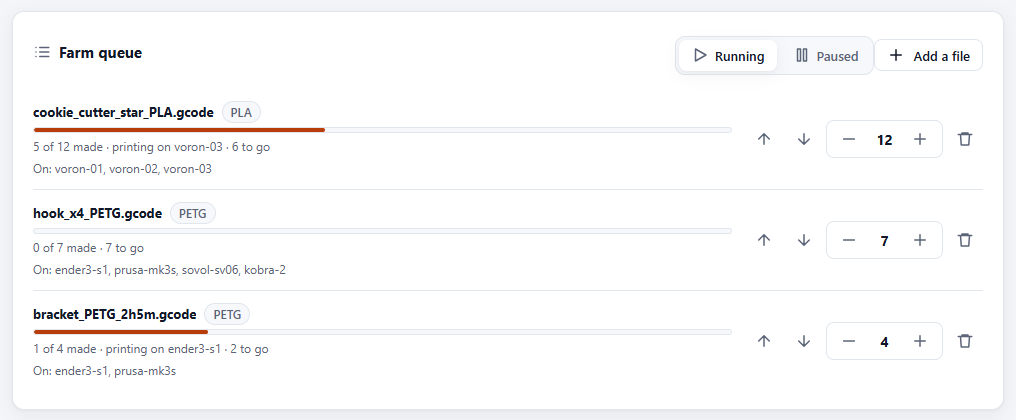
Farm queue, under the printers, holds files to print many times over: Add a file (or tick printers and choose Farm queue in the bar), say how many Copies, and tick the printers it may print on. Each copy goes to the next of them that is free: printing nothing, its bed empty (no parts, no finished print waiting), nothing in its own job queue. The jobs higher in the list go first; ↑ ↓ move a job, − + change its copies, and the bin removes it (a copy printing goes on). Paused stops sending copies; the ones under way finish.
- A copy lands in a
farm/folder on its printer, so it never takes the place of one of its own files. - A printer with auto-eject takes the next copy as soon as its bed is clear. One without it waits for Bed is clear on its card, as after any print.
- When a copy stops (cancelled, an error, Klipper stopped), its printer gets no other until someone says its bed is clear: the queue shows which ones wait.
- A file sliced for one filament (PrusaSlicer, Orca and Bambu Studio say which) skips a printer whose spool holds another: no PETG on a printer loaded with PLA.
- Tick only printers the file was sliced for: the queue does not know a Voron's G-code from an Ender's.
The files stay on the farm printer's card until their job is removed. The queue and what each copy did are kept across restarts.
The spool on each printer
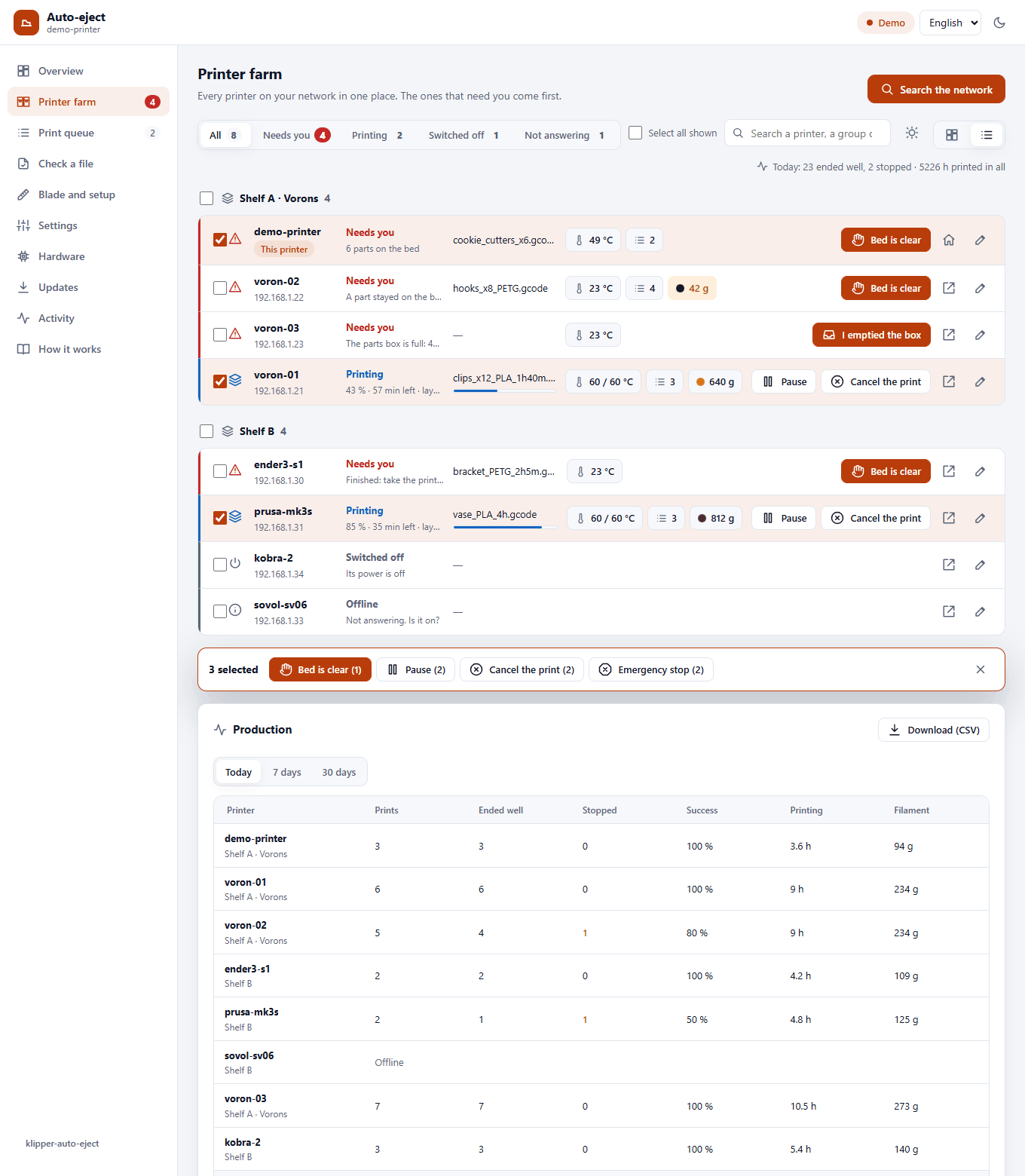
A printer whose Moonraker is linked to Spoolman shows its spool on its card: the colour, the filament and the grams left, in orange when it runs low (under 50 g, or under a tenth of a full spool).
Production
At the foot of the farm, Production sums up what each printer made today, in the last 7 days or the last 30 days: the prints, how many ended well and how many stopped (an error or a cancel), the success rate, the hours printing and the filament used, then the whole farm. Download (CSV) saves the table for a spreadsheet. It comes from each printer's print history in Moonraker; the filament from each file's weight, or as 1.75 mm PLA when a file does not say.
Settings for a kind of printer
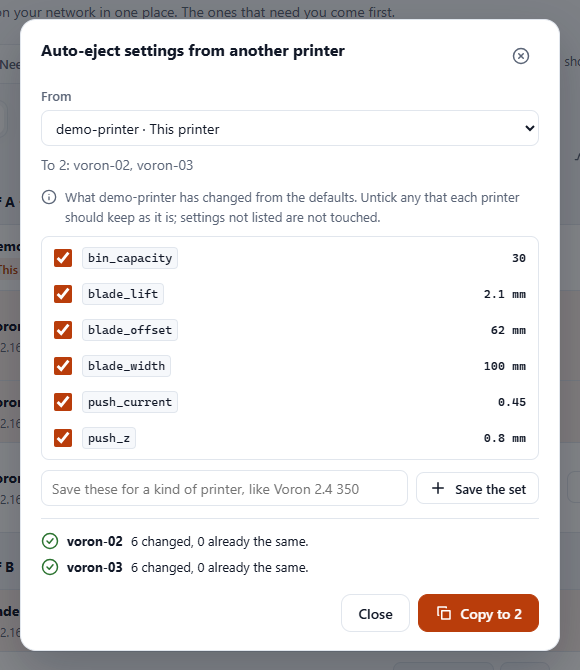
Tune one printer, then give its auto-eject settings to the others of its kind: tick them and choose
Copy settings in the bar (or ✎ on one printer, then Settings from…). Pick where they come
from: a printer, or a set saved earlier. The list shows what that printer has changed from the
defaults, every one ticked except the notifier's name, which each printer keeps its own; untick
anything else a printer should keep as it is. Copy to sets, on each printer, only the ones it
does not already have, with AUTO_EJECT_SET like the Settings page, and names what it left as it
was: a value only the settings file can hold (a G-code line), or a setting that printer's
auto-eject does not have yet. Settings not listed are not touched. A printer clearing its bed is
left for later.
Type a name under the list, like Voron 2.4 350 or Ender 3 S1, and Save the set: it is kept in the farm and shows under Saved sets next time, for a new printer of that kind. Delete the set forgets it; the printers keep their settings.
A copy is kept after a restart where the printer has [save_variables] (the installer adds it);
without it, until Klipper restarts.
A QR label on each printer
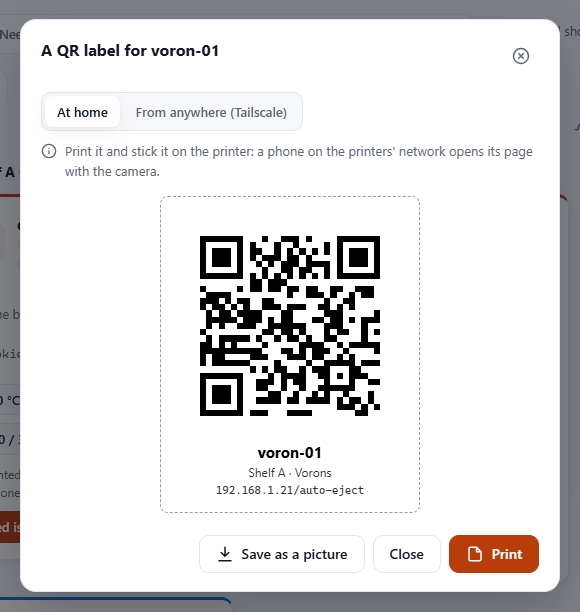
✎ on a printer, then QR label: its name, its group and a QR code of its page, to print and stick on the printer. Point a phone's camera at it and the printer's page opens. Choose At home (its address on your network: the phone must be on the same Wi-Fi) or From anywhere (Tailscale) (a phone with Tailscale on opens it at home or away). Print prints the label alone; Save as a picture keeps it as a PNG for a label printer's own app.
For the whole farm, tick the printers and choose QR labels in the bar: one sheet, three labels across, a dashed line to cut along. The codes are made in the page itself, with nothing sent anywhere.
Many printers, without waiting
Every 3 seconds the farm asks all printers at once, up to 32 at a time, so 100 printers take about as long as one. A printer that does not answer is asked again after 10 seconds, then 20, up to once a minute, and shows Not answering meanwhile: ten printers switched off at the wall do not slow the others. A printer whose Klipper stopped still answers through Moonraker and shows Stopped with Klipper's message.
From your phone, anywhere
Set up remote access on the farm printer only:
The farm printer reads the others for you, so from your phone you see every printer, its camera included, through that one printer. Print, Pause, Cancel the print and the other buttons go through it too, and so do the files you send, so they work from anywhere. The other printers need no Tailscale. Only Open goes straight to the other printer: on the same network it opens its local address; away from it, through Tailscale, it opens the printer's Tailscale address when that printer has Tailscale too (the farm finds it by its network card).
Notifications from every printer
A phone that turned notifications on in the app (notifications.md) gets them from every printer of the farm too:
| Every printer | Printers with auto-eject, also |
|---|---|
| A print finished (if that phone wants every finished print) | A part is still on the bed after the eject |
| A print stopped with an error, or was cancelled | Parts too thin to push were left on the bed |
| Klipper stopped | A print ended without an eject; the guard did not start a print |
The title starts with the printer's name, and tapping it opens the farm. A printer whose own klipper-auto-eject service has notifications on sends its own as well, so a phone that turned them on in both places gets those twice.
Who can use it
The farm answers only devices on a private network: your local network and Tailscale, like Moonraker by default. Anyone who can open the page can press its buttons, as in Mainsail.
How it works
The farm is part of the klipper-auto-eject service (push/farm.py and the farm_*.py files next
to it). Every 3 seconds it asks each printer's Moonraker for its state, the way Mainsail does.
That is a few small requests, which the printers do not notice. The list of printers is kept in the farm printer's Moonraker
database (namespace auto_eject_farm). The service answers the page on 127.0.0.1:7128, and
nginx publishes that at /auto-eject/api/:
| Request | Answer |
|---|---|
GET /auto-eject/api/farm |
Every printer's card, and the last search |
POST /auto-eject/api/farm/scan |
Starts a search of the network |
POST /auto-eject/api/farm/printers |
{"add": [{"host": …, "port": …}]}, {"remove": id}, {"rename": id, "name": …} |
POST /auto-eject/api/farm/<id>/clear, …/continue, …/estop, …/bin_empty |
The buttons |
POST /auto-eject/api/farm/<id>/power |
{"device": …, "action": "on"} or "off" |
POST /auto-eject/api/farm/<id>/pause, …/resume, …/cancel |
The print on that printer |
GET /auto-eject/api/farm/<id>/files |
Its G-code files, newest first |
POST /auto-eject/api/farm/<id>/print |
{"filename": …}: starts it, only on a free printer |
POST /auto-eject/api/farm/<id>/upload?name=…&print=1 |
The file as the request body; the farm printer passes it on to that printer's Moonraker |
POST /auto-eject/api/farm/printers |
also {"id": …, "auto_off": minutes, "device": …} and {"id": …, "group": …} |
GET /auto-eject/api/farm/report?period=today |
What each printer made: today, 7 or 30 days |
POST /auto-eject/api/farm/<id>/push |
Push now, while its bed cools with the printer free |
POST /auto-eject/api/farm/<id>/update |
{"names": ["klipper", "moonraker", …]}: updates them in the background, only while that printer does nothing. Its card then shows job: {"names", "done", "state", "error"} |
GET /auto-eject/api/farm/<id>/snapshot |
That printer's camera picture |
GET /auto-eject/api/farm/<id>/settings |
Its auto-eject settings: values, the changed ones, and whether a change is kept after a restart |
POST /auto-eject/api/farm/<id>/settings |
{"values": {"cool_temp": 40, …}}: sets the ones that differ; answers what changed, what was the same, and what was skipped |
POST /auto-eject/api/farm/queue/upload?name=…&copies=3&printers=id1,id2 |
A file for the farm queue, as the request body |
POST /auto-eject/api/farm/queue |
{"running": false}, {"id": …, "copies": n}, {"id": …, "move": -1}, {"id": …, "remove": true}, {"cleared": printer}; GET …/farm shows it in queue |
POST /auto-eject/api/farm/sets |
{"name": …, "values": {…}, "from": …} saves a set, {"remove": name} deletes it; GET …/farm lists them in sets |
Its log: journalctl -u klipper-auto-eject. Try it without printers in the
demo: ?demo#/farm.
Not included: printers without Klipper and Moonraker (Bambu Lab, Prusa Connect, OctoPrint).
Removing it
install.sh --uninstall on the farm printer removes the service and the page. The other
printers were never changed.